
Assign a Calendar to all relevant Locations to enable RideIQ to automatically adjust affected Ride Series for holidays and days off. You can learn more about how assigned Calendars work in this article.
To view and manage which Locations a specific Calendar is assigned to, select the desired Calendar on the Calendars page, then click Assigned Locations.
You'll see a list of all Locations that the Calendar is currently assigned to. From the Assigned Locations page for a Calendar, you can add or remove Calendar assignments, as explained below.
Removing a Calendar assignment
To remove an assignment, click the trash can icon, then click Remove Location to confirm.
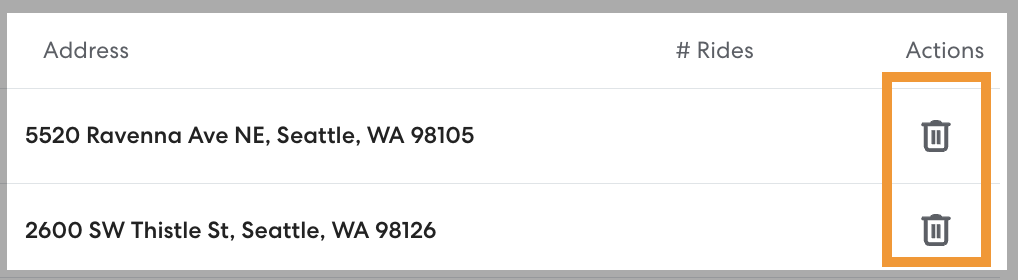
When you remove the Calendar assignment, any Ride Series scheduled for that Location will no longer adjust based on the Calendar. However, no changes will be made to any existing rides.
Adding a new Calendar assignment
To assign the Calendar to an additional Location, begin typing a Location name or address in the search field, then select the desired Location from the list. Choose from saved Locations, or create a new Location if necessary.
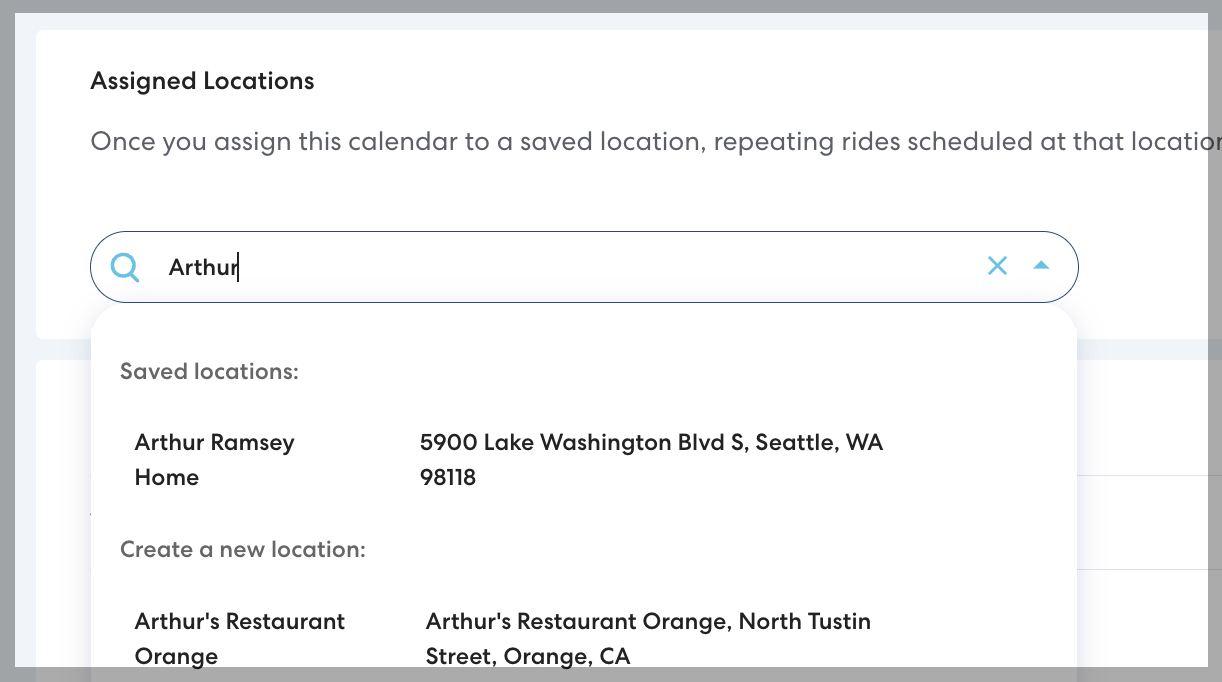
Once the Calendar is assigned to a Location, all Ride Series scheduled for the Location will automatically adjust based on the Calendar's days off and holidays.