In this article
- What happens when you pause a rider
- Considerations when pausing a rider
- How to pause a rider
- When a rider is paused
- How to unpause a rider
- Manage scheduled pauses
Pausing a rider allows you to temporarily stop HopSkipDrive transportation for a rider, then resume transportation as before without needing to rebuild their Ride Series.
If desired, you can schedule a ride to start and stop on specified dates, allowing you to schedule around known rider absences.
What happens when you pause a rider
Pausing a rider does the following:
- Cancels any rides where the paused rider is the only one on the ride.
- Removes the rider from any rides or Ride Series that include other riders. Transportation for other riders will not be affected.
When you are ready to resume transportation for the rider, you can unpause them. The rider's previously scheduled ride series will then be resumed as before, with no additional scheduling required.
- If the paused rider was the only rider on their Ride Series, the series will be automatically resumed as previously scheduled.
- If the paused rider was part of a multi-rider series, they will be re-added to that series if appropriate. During the time the rider is paused, they will still be counted toward the limit of 4 total riders. If the multi-rider series has been significantly edited, RideIQ will schedule a new Ride Series to ensure the rider's schedule is maintained as previously scheduled.
Considerations when pausing a rider
Keep the following impacts in mind when pausing transportation for a rider:
- If a Ride Series was claimed by a Primary CareDriver, they will be removed from the series when the rider is paused. When you unpause the rider the series will be available to be claimed by a new Primary CareDriver.
- Caregivers and riders (if applicable) will be notified via text message that rides have been canceled.
- Riders with a Rider Service enabled cannot be paused. If you would like to pause a rider with a Rider Service, first remove the service from their profile, then pause the rider.
How to pause a rider
Follow the steps below to pause a rider:
- Open the rider profile page for the desired rider.
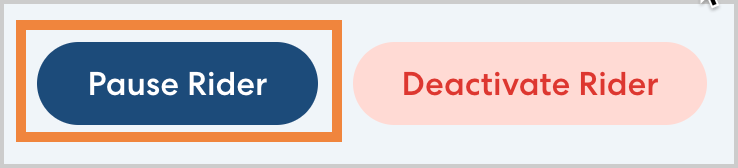
- Click Pause Rider.
- Select when you would like the pause to start and end. You can choose to start the pause immediately or schedule it to begin on a specific date.
Similarly, you can leave the pause open-ended or select a date for rides to resume. Rides will resume the day after the end date you enter.
Click Save to confirm your selections.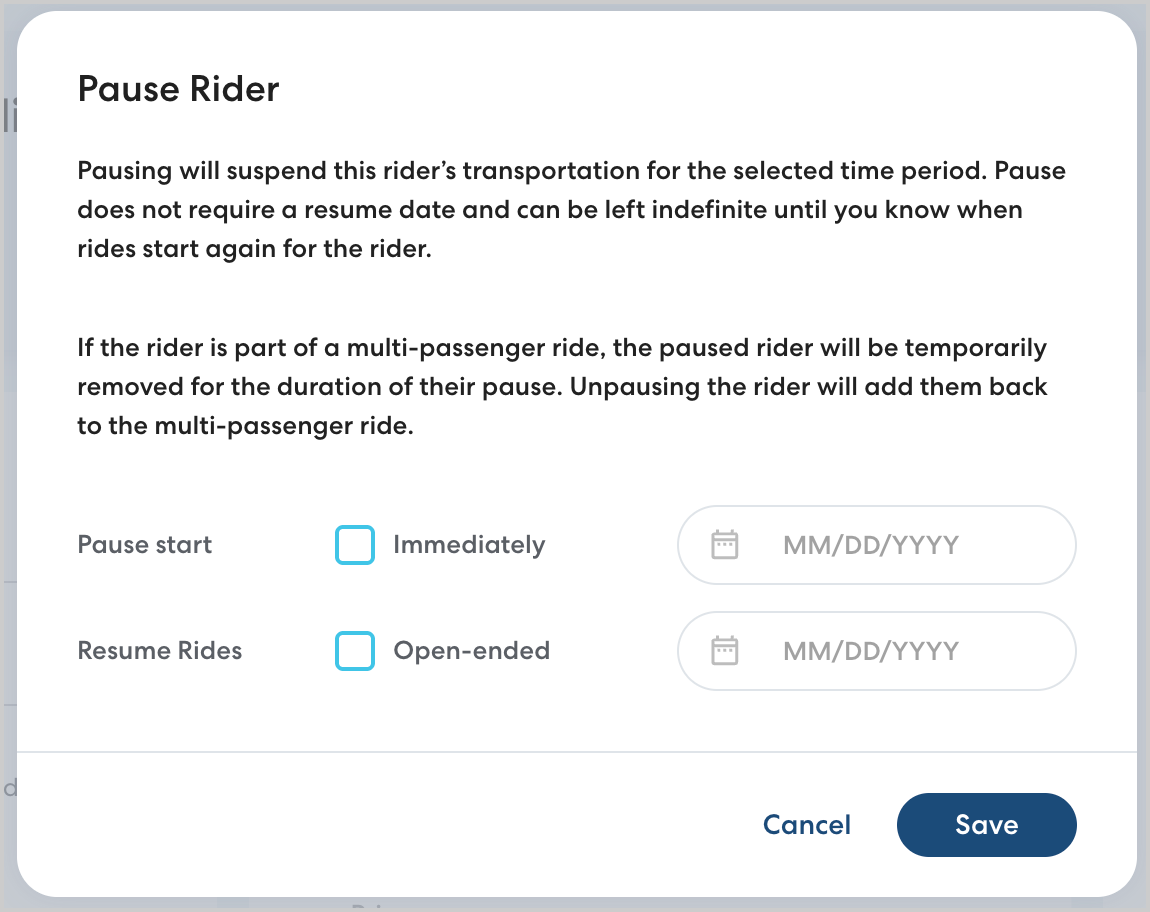
When a rider is paused
Once the rider is paused, you will see a Paused tag on their profile, as well as the date the pause began.

If you have scheduled a pause to take effect in the future, you will also see those dates displayed.
On the rider's profile, rides will appear in the Rides list with a Paused tag. 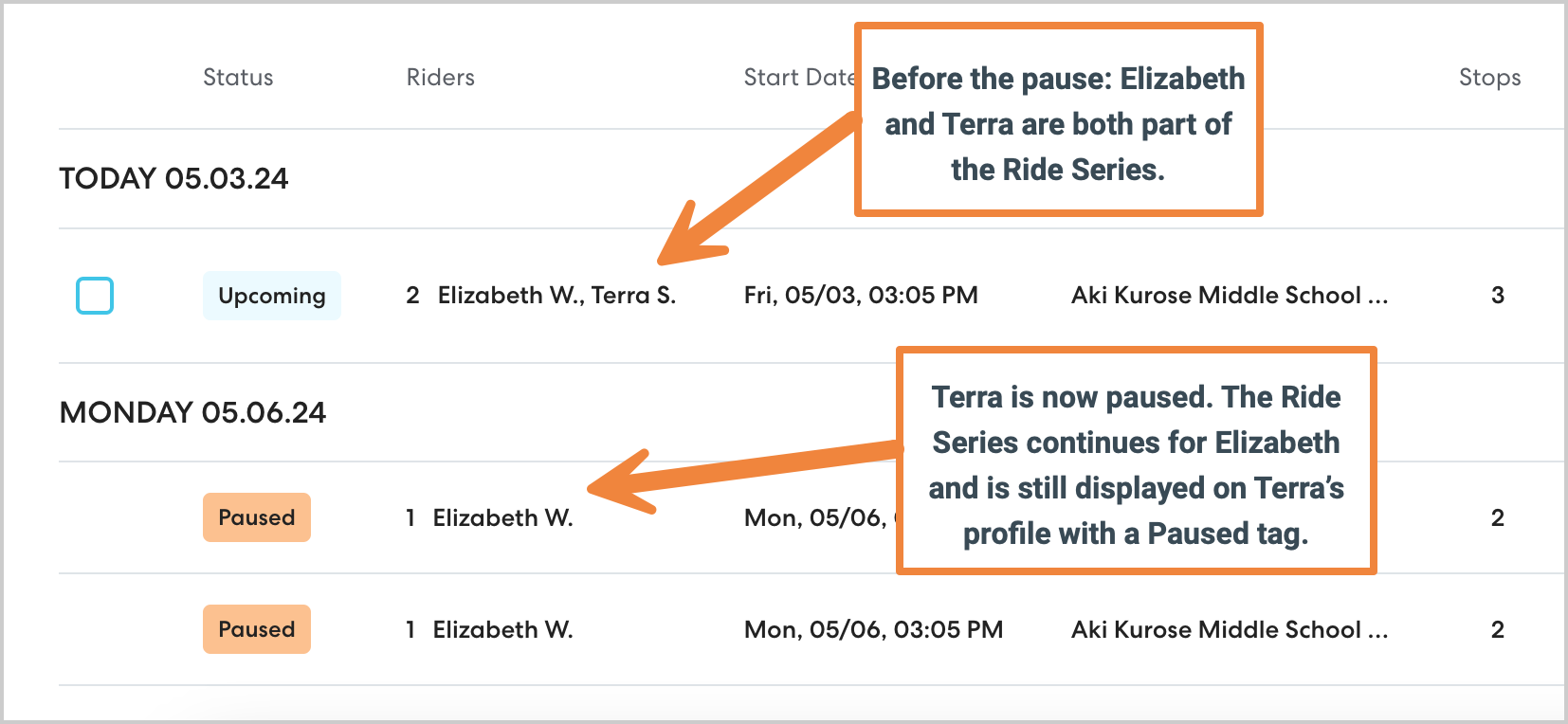
Paused riders and location changes
While a rider is paused, you cannot add or edit locations on a rider's profile. However, any scheduled Find and Replace updates to locations will take effect as scheduled, even if the rider is paused.
How to unpause a rider
You can unpause a rider at any time and resume transportation as previously scheduled. To unpause a rider, follow the steps below:
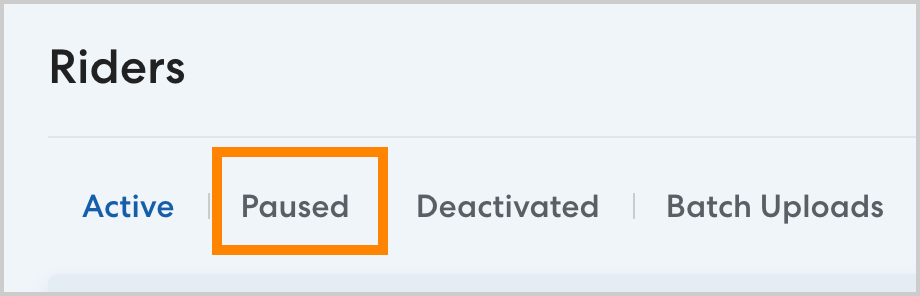
- On the Riders page, click the Paused tab.
- Select the desired rider, then click Pause Options.

- Select Today to resume transportation immediately. If you select Today, any rides starting at least 70 minutes from the time you unpause the rider will resume. To unpause the rider on a future date, enter the desired date.
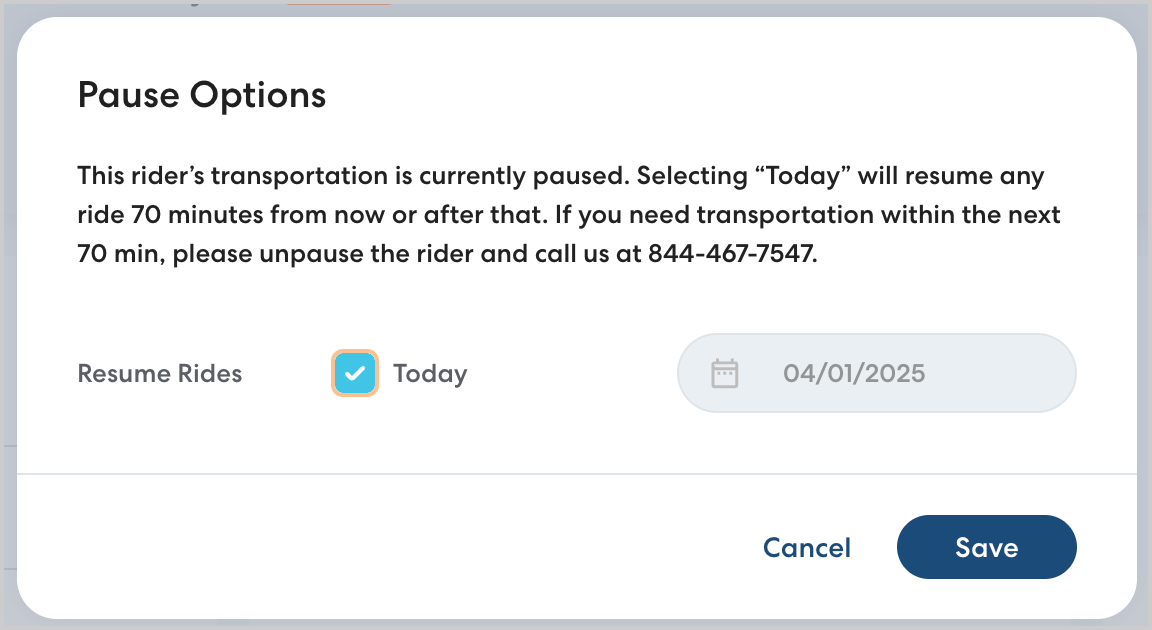
- Click Save to confirm your changes.
Once the rider is unpaused, any previously scheduled rides and Ride Series will resume.
Managing scheduled pauses
You can edit upcoming or active scheduled pauses at any time.
If the rider is currently paused:
- navigate to the Riders page and click the Paused tab.
- Select the desired rider, then click Pause Options.
- Select a new date for rides to resume, or select Today. Click Save to confirm your changes.
If the pause is scheduled to start in the future:
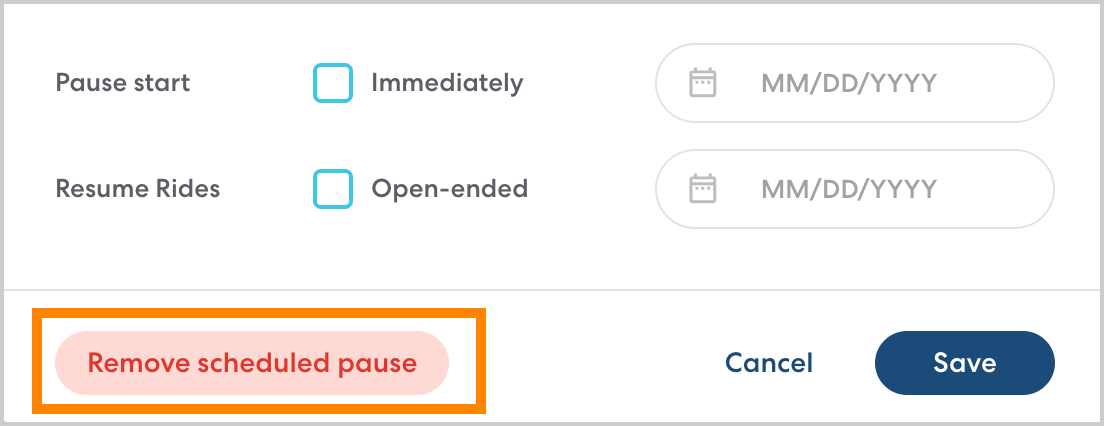
- Select the desired rider. On the rider's profile, click Pause Options.
- Set the pause start and end dates as desired. To cancel an upcoming scheduled pause completely, click Remove scheduled pause.
Deactivating a paused rider
To fully remove a rider from your account, you can deactivate them. To deactivate a rider who is currently paused or who has an upcoming scheduled pause, navigate to the rider's profile and click Deactivate rider. Learn more about how rider deactivation works in this article.