In this article
- See canceled rides by date, rider, tag, or location
- Show or hide unbilled rides
- View ride details
- Cancel same day rides
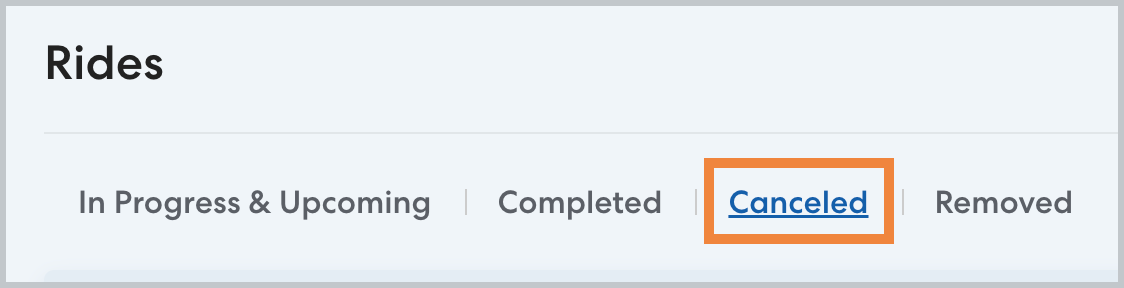
You can review canceled rides by selecting the Canceled tab on the main Rides page or in the Rides section of any rider's profile.
See canceled rides by date, rider, tag, or location
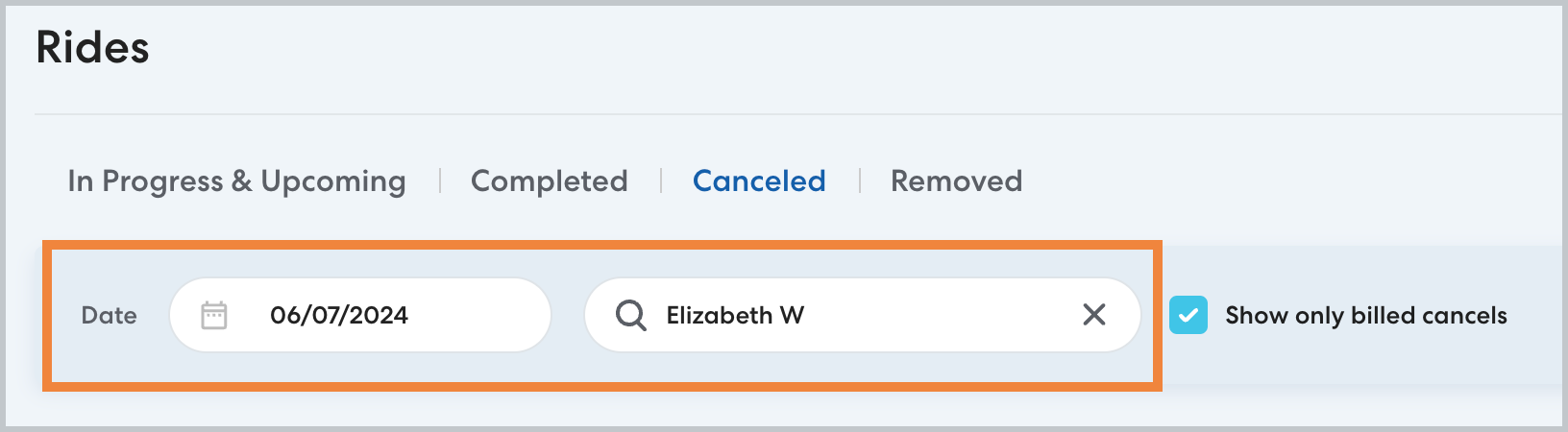
In Date, type a date to see canceled rides on that day.
Search by rider name, tag, or location to see a filtered list of canceled rides.
Show or hide unbilled cancels
By default, RideIQ only displays canceled rides that your organization will be billed for because they were cancelled within the cancellation window.
To view all canceled rides, including those that did not incur a charge, click to clear Show only billed cancels.
You can also use Reports to dig deeper into data on billed cancels. Learn more about setting up a billed cancels report in this article.
View ride details for canceled rides
When viewing all canceled rides, you can see the riders, scheduled date and time, and cancellation reason for the ride. You'll also be able to see the date of cancellation, who canceled the ride, and the amount billed.

To see more information, click the eye icon in the Actions column to open the full ride page.
Cancel same-day rides
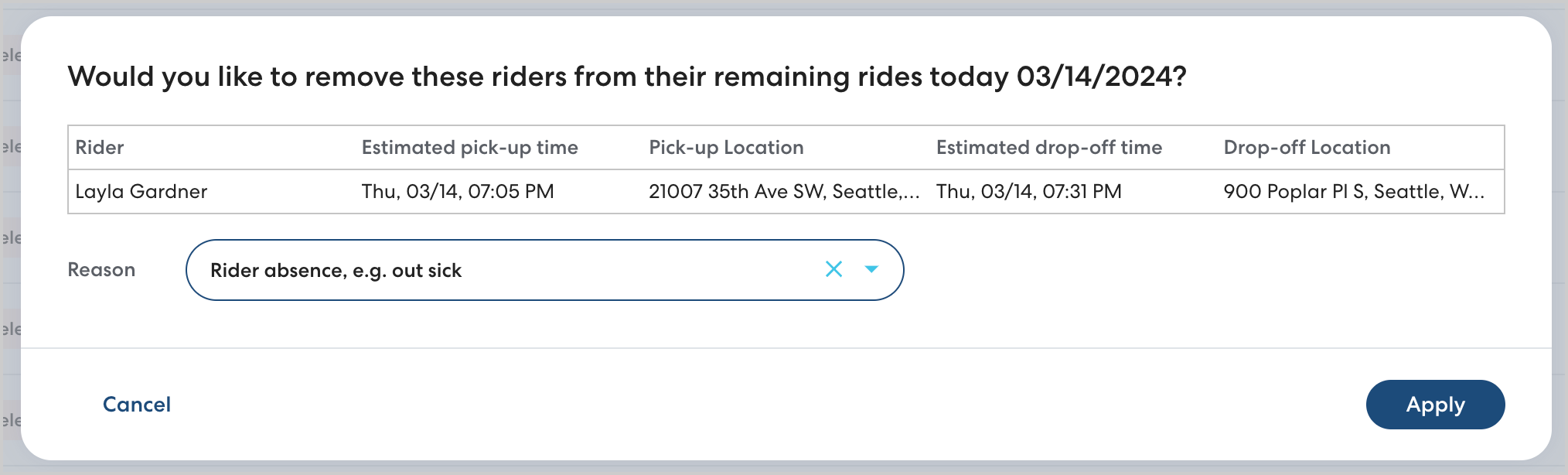
When reviewing canceled rides, the clock icon indicates that the rider has additional rides on the same day. Click the icon to view the rider's remaining rides and cancel them if needed.