
To quickly create a new Ride Series using the same riders and locations as a previous series, you can use the Duplicate feature. Duplicate any ride in a series to create a new series with the same Riders, locations, and pickup or drop-off times as the original series. You can then set new days for the rides in the series, set a new start and end date, and make additional changes as needed.
This feature can be helpful when you need to create multiple similar series, such as a set of rides for a Rider whose schedule is different on different days of the week.
Follow the steps below to duplicate a ride series:
- On the Rides page, navigate to a ride in the Ride Series you want to duplicate. You can duplicate an upcoming, completed, or canceled ride.
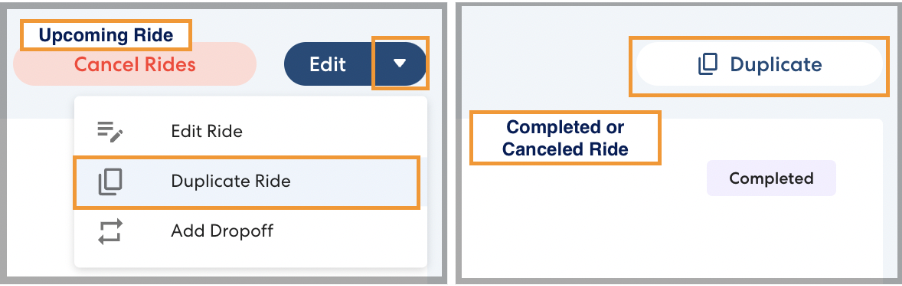
- Click a ride from the series you want to duplicate. For upcoming rides, click the arrow next to the Edit button, then click Duplicate Ride. For completed or canceled rides, click Duplicate.
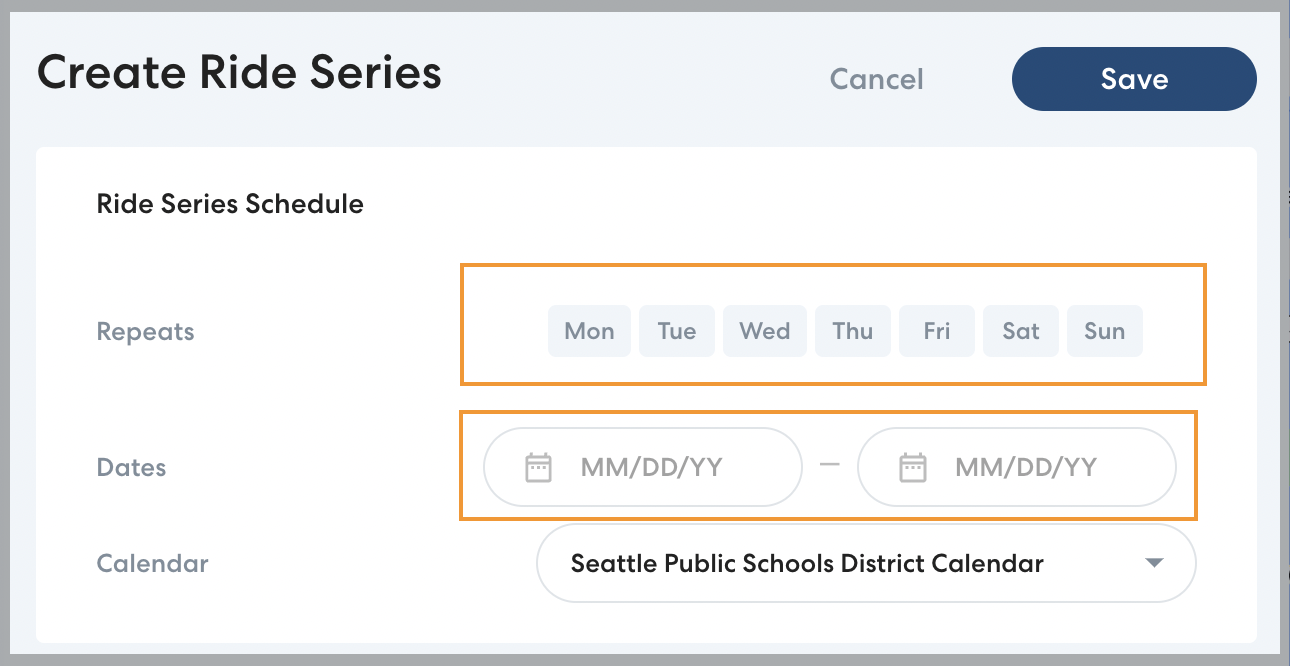
- A new ride series will be created with the same Riders, locations, and pickup or drop-off times as the original ride series. Select the days of the week for the new ride series, and the start and end date.
- If desired, make any additional changes to the ride series as you would when creating a new ride series.
- Click Save.
