When a Rider's transportation costs are shared with another district, you can set up shared billing to automatically split the costs. Whether your district is the attending district or the residence district for the Rider, you can use reporting to view data about rides scheduled for shared Riders.
As with any report, you can download results as a .csv file and save the report for quick access.
Filter a report to show only shared Riders
By default, any report will include shared Riders that meet the filters you have set. To filter any report to show only shared Riders, select Shared Riders Only in the Riders filter.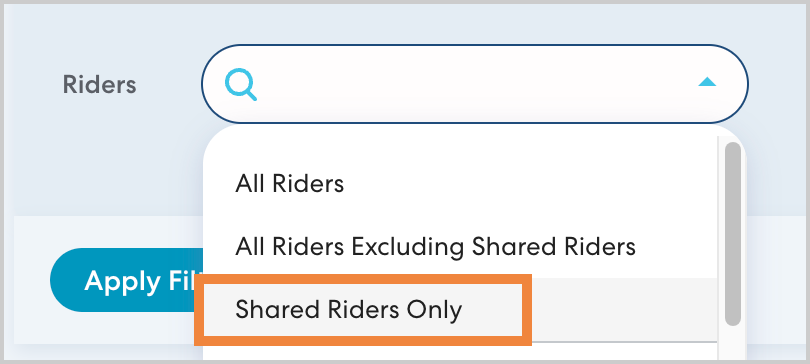
This filter applies based on the Rider's status on the date of the ride. For example, if a Rider was shared in January but shared billing was removed on February 1st, that Rider's rides will appear when reporting on rides in January for Shared Riders Only, but will not appear when reporting on rides in February. Similarly, if shared billing was removed partway through the period you are reporting on, any rides that were shared will appear, but the rides after shared billing was removed will not.
For shared Riders, you can further sort the results by residence district. In Group by, select Residence district. 
If a Rider's residence district has changed, keep in mind that you may see rides for the same Rider grouped under both the old and new residence district.
Key report columns for shared Riders
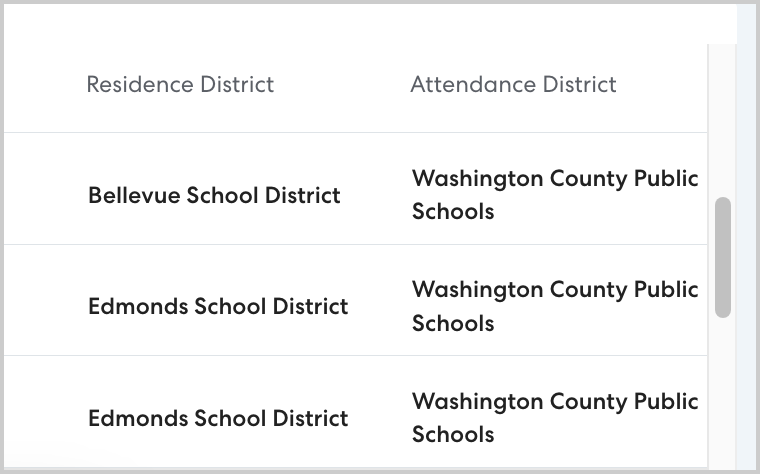
In addition to the columns available on all reports, a report that includes shared Riders includes an Attendance District column and a Residence District column.
Reviewing fares for shared Riders
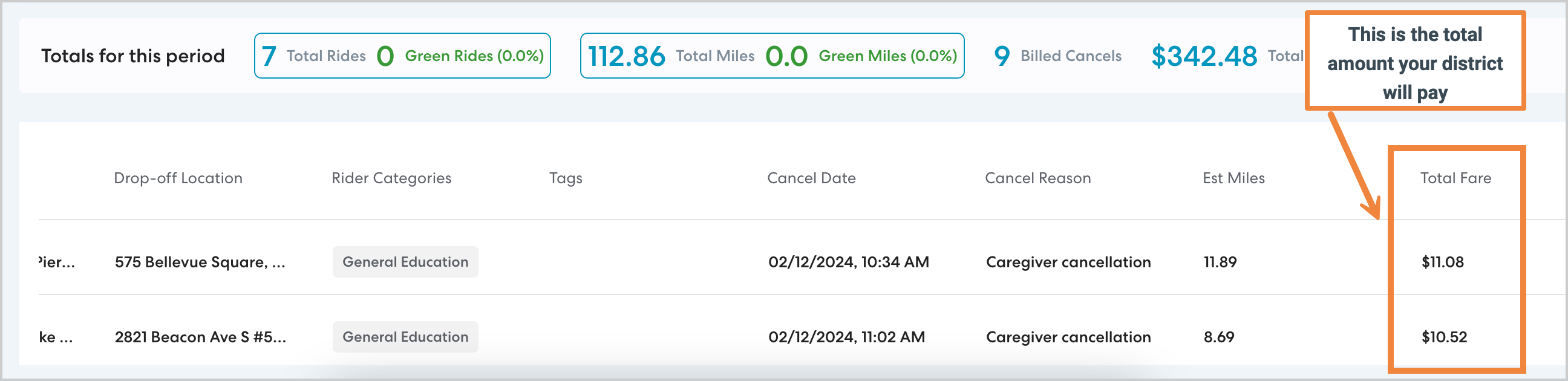
The total fare listed for shared Riders is the total amount your district is responsible for, which is 50% of the total charge for the Rider. You can read more about reviewing ride charges for shared Riders here.