To efficiently access the Reports you use most often, you can save your filter configurations, set saved reports as favorites for easy access, and set a default report.
Creating a saved report
Follow the steps below to create a saved custom Report:
- Configure the Report filters as desired. Learn more about how to set up a Report in Reports in RideIQ.
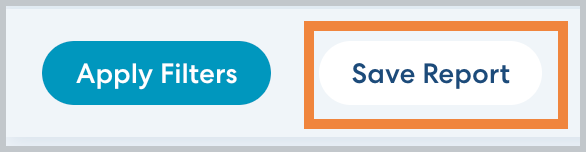
- Click Save Report.
- Enter a descriptive name for the report.
- Review the filter settings and make any changes, if desired.
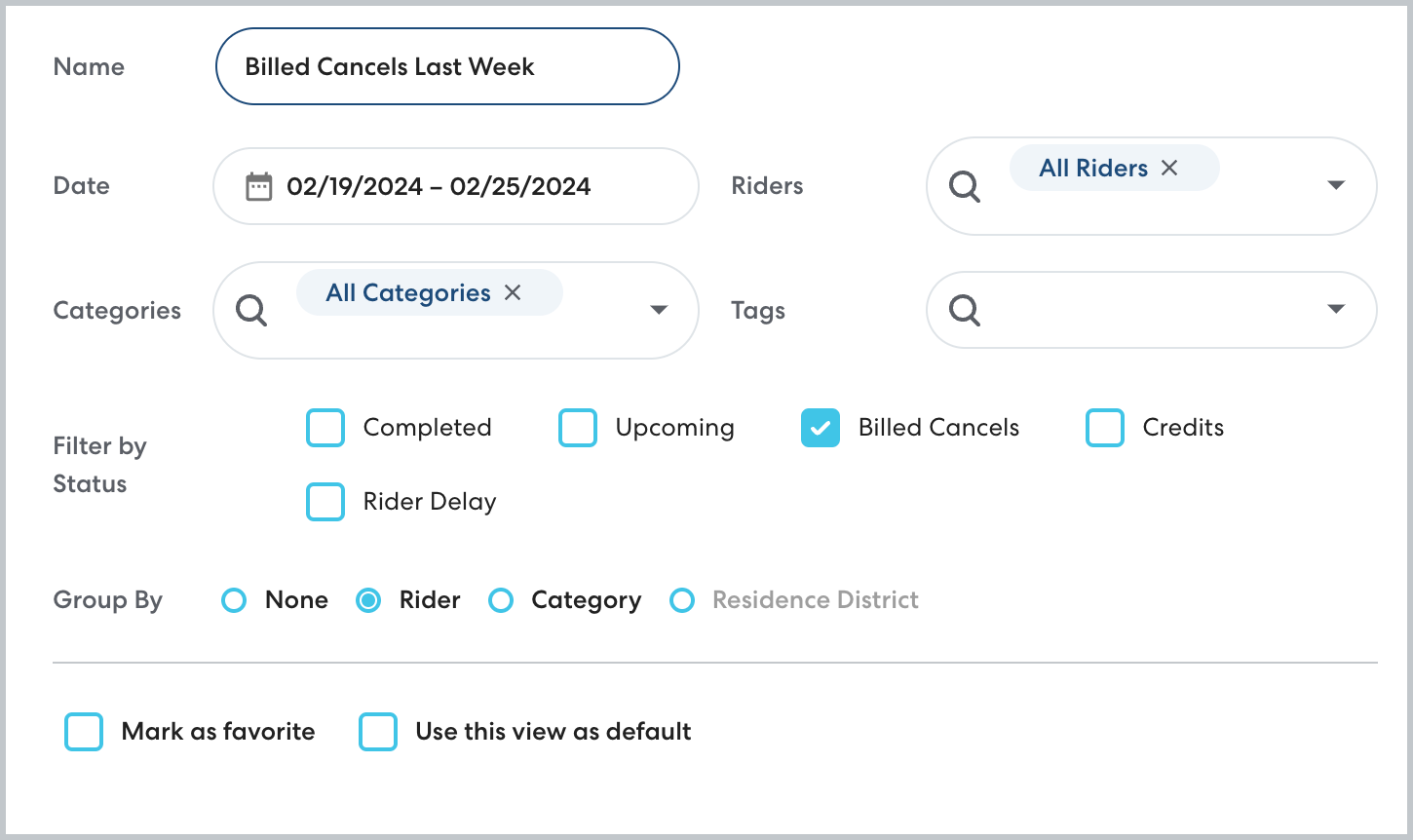
Note: If you configure the report with a dynamic date period such as Last Week, RideIQ will automatically adjust the dates to match the described period relative to whenever you open the saved report. -
Last Week or Last Month: report on the most recent complete calendar month or week (Monday - Sunday)
- Current Week or Current Month: report on the calendar month or week (Monday - Sunday) currently in progress.
-
Last Week or Last Month: report on the most recent complete calendar month or week (Monday - Sunday)
- If desired, you can select Mark as favorite. Your favorite reports will appear at the top of the list of saved reports.
To display this report as the default when you open the Reports page, select Use this view as default.
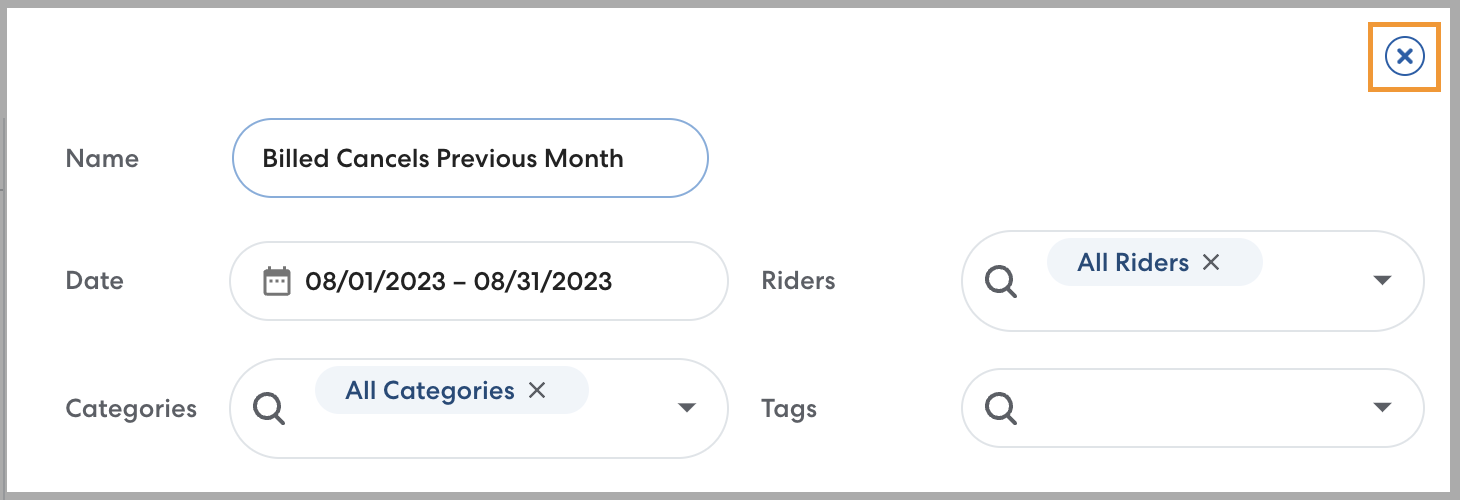
- Click Save Changes to confirm your settings. To return to the Reports page, click the X.