
If you need rides on a regular schedule, you can set up a Ride Series. If something changes, you may need to make edits.
| Note: If a school district or other organization schedules rides for your rider, contact the organization to request changes to the ride schedule. If your rider does not need a specific ride, you can always cancel the ride. Learn more about permissions here. |
Editing a Ride Series in bulk
If you need to change the time, rider(s),or locations for the entire series of repeating rides, cancel the rides and create a new series of repeating rides. To cancel all rides in a series, follow the steps below:
- On the My Rides page, tap the first instance of the repeating ride you want to cancel. For example, if you need to change the pickup address, select the first ride that would require the new address.
- Tap Manage ride.
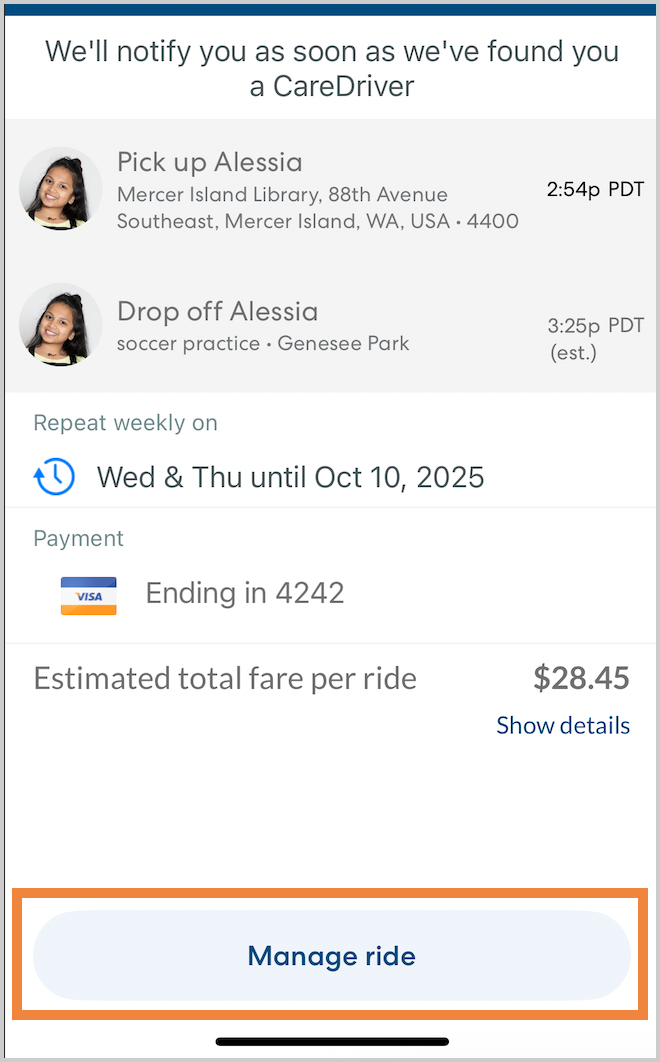
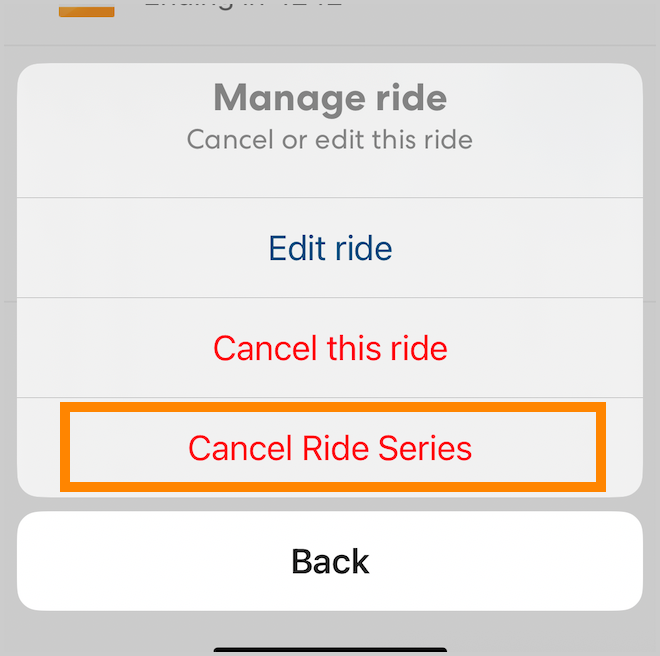
- Tap Cancel Ride Series, then tap Yes, cancel all to confirm. The selected rides and all rides after that will be canceled. You can now create a new repeating ride with the updated information.
Editing a single ride in a Ride Series
If you need to make changes to just a small number of rides, follow the steps below to edit the rides individually. You can make changes to a ride until two hours before the ride starts.
- On the My Rides page, select the ride you want to edit.
- Tap Manage ride.
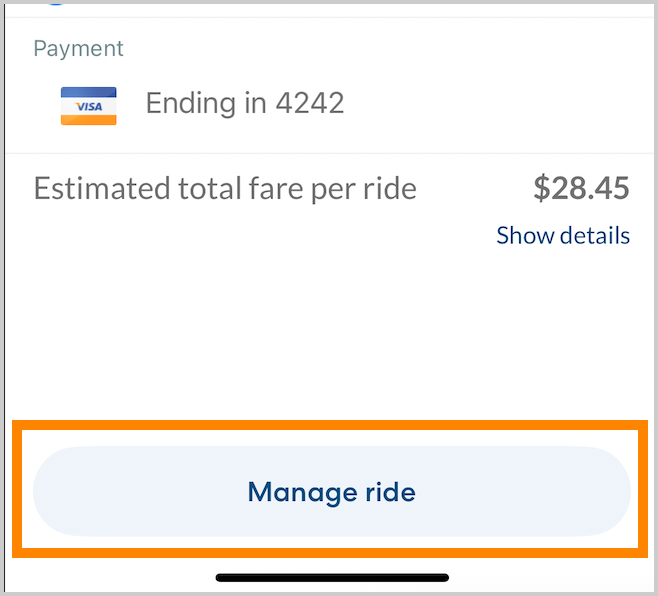
- Tap Edit ride.
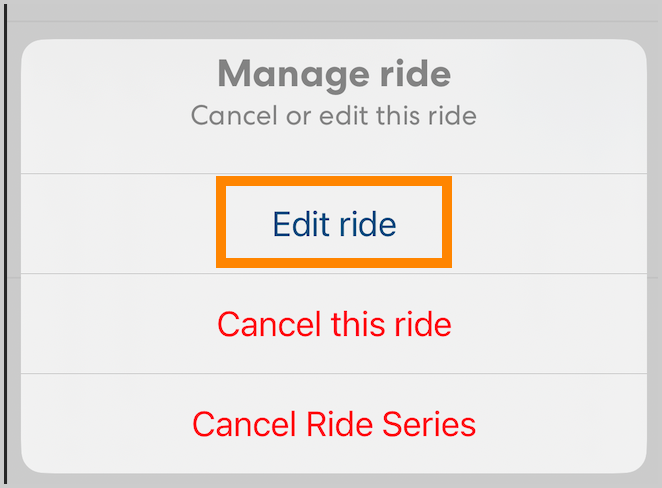
- You can now edit the date, time, rider(s) and locations for the ride, just as if you were creating a new ride. Tap Next to advance through the screens, then make the desired changes and tap Save.
Learn more
Search terms: change time edit address reschedule edit rides change all rides