When applying to be a CareDriver, you can upload the required documents directly in the CareDriver app. When you upload a document, you may see an error message like the one shown below warning you about a missing date of birth, VIN, or other specific piece of information.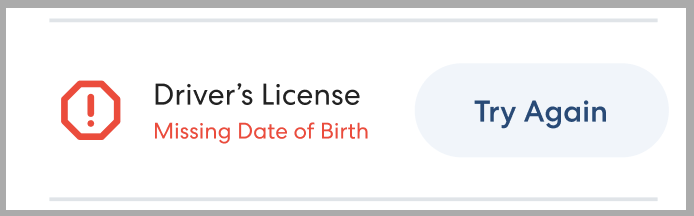
Why Am I Seeing This Error?
This message indicates that the image you uploaded doesn't clearly show a required piece of information. This could be because the picture is blurry, the required information is covered or out of the frame, or because the document doesn't have the required information on it.
Follow the steps below to correct the error:
- Check that the document you're trying to upload includes the required information. If it does not, check that you are uploading the correct document.
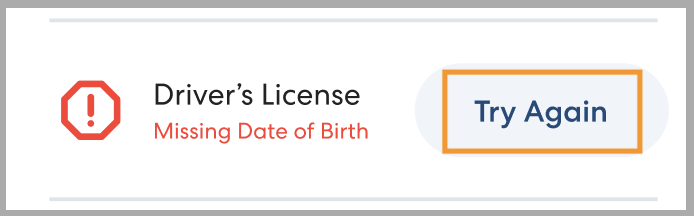
- Tap Try Again.
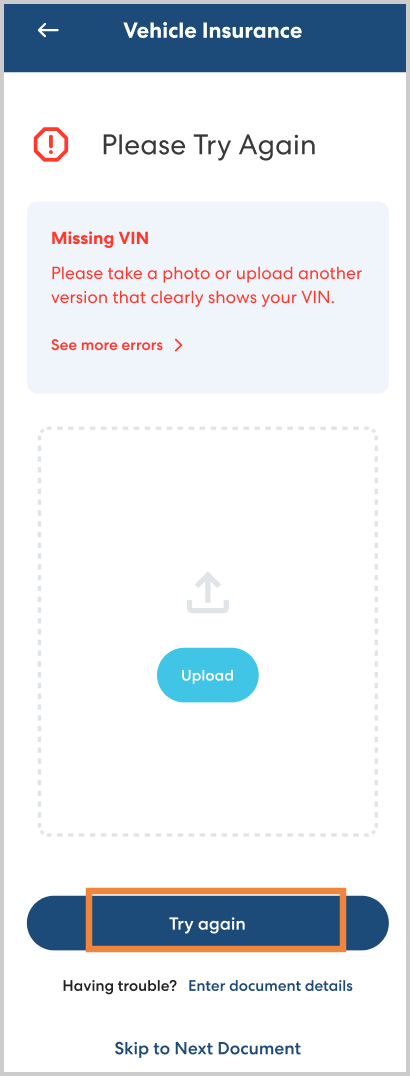
- You'll see a preview of the photo you uploaded previously and more information about the upload error. Tap Try Again to upload a new photo.
-
Take a new photo of the document that clearly shows the required information. Follow these tips:
- Lay the document flat on a flat surface.
- Make sure all four corners of the document are in the photo.
- Take the photo in a well-lit area or turn on the flash.
- Hold the camera steady while taking the photo.
- Make sure you can clearly see the information that was marked as missing.
- If you see a success message, tap Next Document to continue uploading. If the upload was not successful, you may be prompted to enter the information on the document manually so a HopSkipDrive support representative can review it.
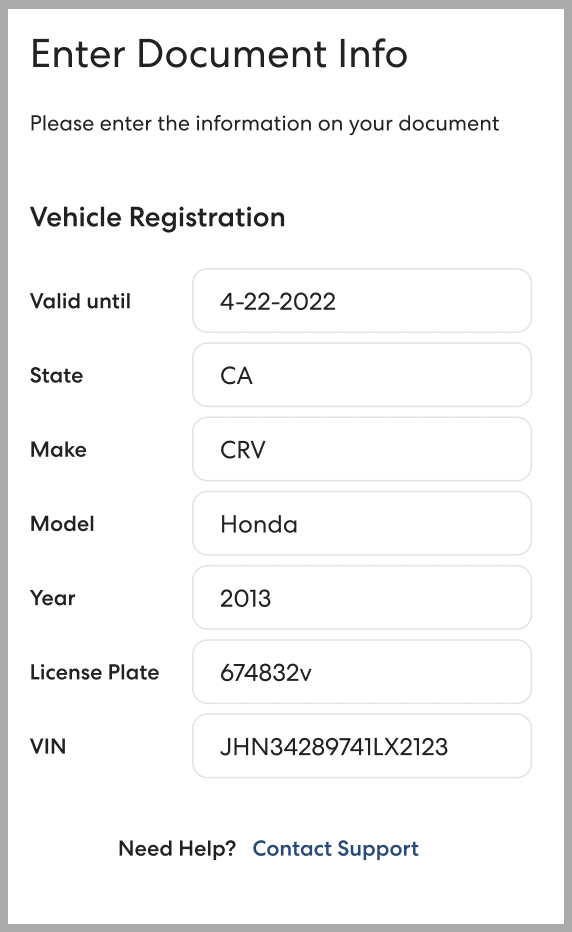
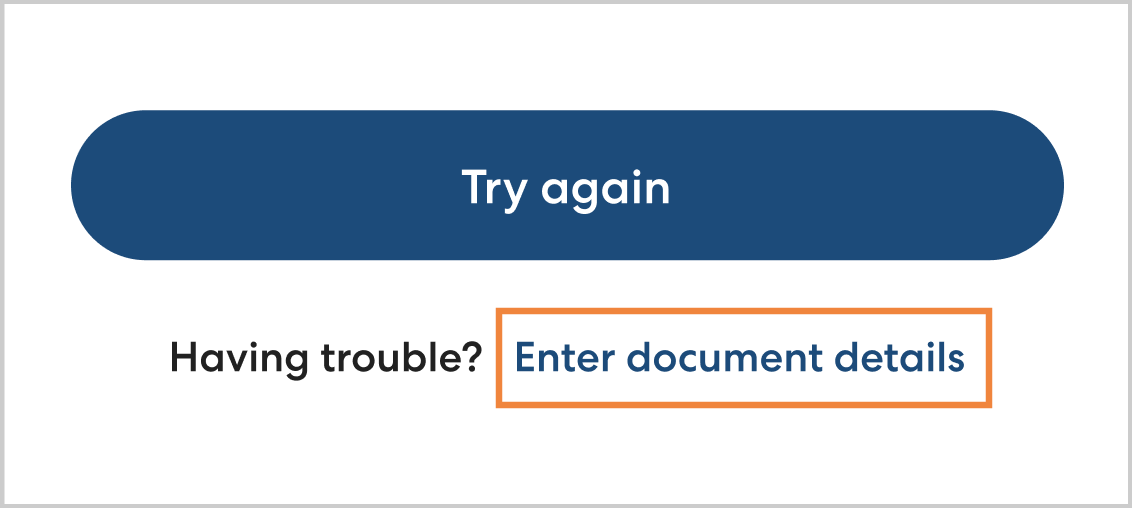
- If you believe that your document is clear and correctly formatted but you still see an error message, tap Enter document details. to send your document to a HopSkipDrive representative for review.